Manuale Techly ICTB1001 Tastiera

Hai bisogno di un manuale per il tuo Techly ICTB1001 Tastiera? Di seguito è possibile visualizzare e scaricare gratuitamente il manuale in PDF in italiano. Questo prodotto attualmente ha 2 domande frequenti, 0 commenti e ha 0 voti. Se questo non è il manuale che desideri, contattaci.

Il tuo prodotto è difettoso e il manuale non fornisce alcuna soluzione? Rivolgiti a un Repair Café per il servizio di riparazione gratuita.

Manuale

Loading…
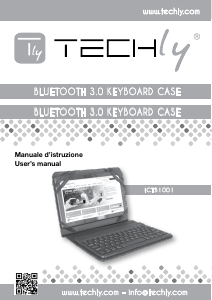
BLUETOOTH 3.0 KEYBOARD CASE
2
www.techly.com
EN
Thank you for choosing the 9.7 “/ 10.1” tablet cover
with Bluetooth Keyboard for Windows, Android and
Apple
Package Contents
Quick user guide
Bluetooth Keyboard
USB charging cable
System Requirements
PC, Android device, Apple device.
For use in a PC, it must be equipped with Bluetooth
receiver. If not, you’ll need to purchase an
additional Bluetooth receiver and install it correctly
onto your computer. Once your computer is Bluetooth-
enabled, the setup applet’s icon will appear in the
windows
taskbar
Installation
Place the front power switch to the ON position. The
Power / Bluetooth will light for 5 seconds and then
press the connection button. The indicator light on/
Bluetooth will start flashing, now the keyboard is in
pairing mode.
Enable Bluetooth on your tablet/Pc and do a search
for devices.
Installing the Bluetooth Wireless Keyboard
Installing the Bluetooth Keyboard into Your
Computer
Before using the Bluetooth keyboard with your
computer, you need to check whether your computer is
equipped with Bluetooth receiver. If not, you’ll need to
purchase an additional Bluetooth receiver and install it
correctly onto your computer. Once your computer is
Bluetooth-enabled, the setup applet’s icon will appear
in the windows taskbar as shown below. Right-click on
the Bluetooth icon in the windows taskbar, and select
“Add a Bluetooth Device”.
Tick the checkbox “My device is setup and ready to be
found”, then click “Next”.
Your computer will now scan for Bluetooth devices
in your area and display found devices. At the same
time press and hold both “Esc” and “k” keys on the
keyboard simultaneously.
Select the keyboard from the list of found devices
and click “Next” to continue. We recommend to select
“no password” when required, then click “Next” to
continue. The system will automatically finish the
installation after clicking "Finish" in below window.
Installing the Bluetooth keyboard with smartphone
/ tablet Android
For the first time you need manually connect your
smartphone / tablet with the Bluetooth keyboard; it
is not necessary to further pairing if the first time is
successful.
Enable Bluetooth smartphone / tablet by opening the
Settings menu and selecting Bluetooth and Wireless
Networks. Press Connect button on the keyboard. The
Bluetooth indicator starts flashing, now the keyboard
is in pairing mode. When the tablet detects the
keyboard, select it from the list of Bluetooth devices to
pair the device. The system will show a random PIN
number. Type the number on the keyboard and press
Enter to complete the pairing. Now the keyboard is
connected successfully to the smartphone / tablet.
Installing the Bluetooth Wireless Keyboard into
Your iPhone/iPad
You must sync your iPhone/ iPad with the Bluetooth
keyboard manually before using. No further sync
is needed if the first sync runs successfully. Please
follow the detailed instructions as below to complete
the sync procedure.
Follow the path Settings General Bluetooth on your
iPhone/ iPad to enable \the Bluetooth function on your
iPhone/ iPad.
When Bluetooth is turned on, your iPhone/iPad will
start searching for Bluetooth devices automatically. At
the same time press and hold both “Esc” and “k” keys
on the keyboard simultaneously. Your keyboard will
be found by your iPhone /iPad automatically. When
the keyboard is found, press the “Bluetooth Keyboard”
appearing on the iPhone/ iPad screen, a window will
pop up with a syncing passkey. Type in the passkey
shown given by the iPhone/ iPad on the keyboard
and then press the “enter” key. Now the Bluetooth
keyboard should be connected to your iPhone/ iPad.
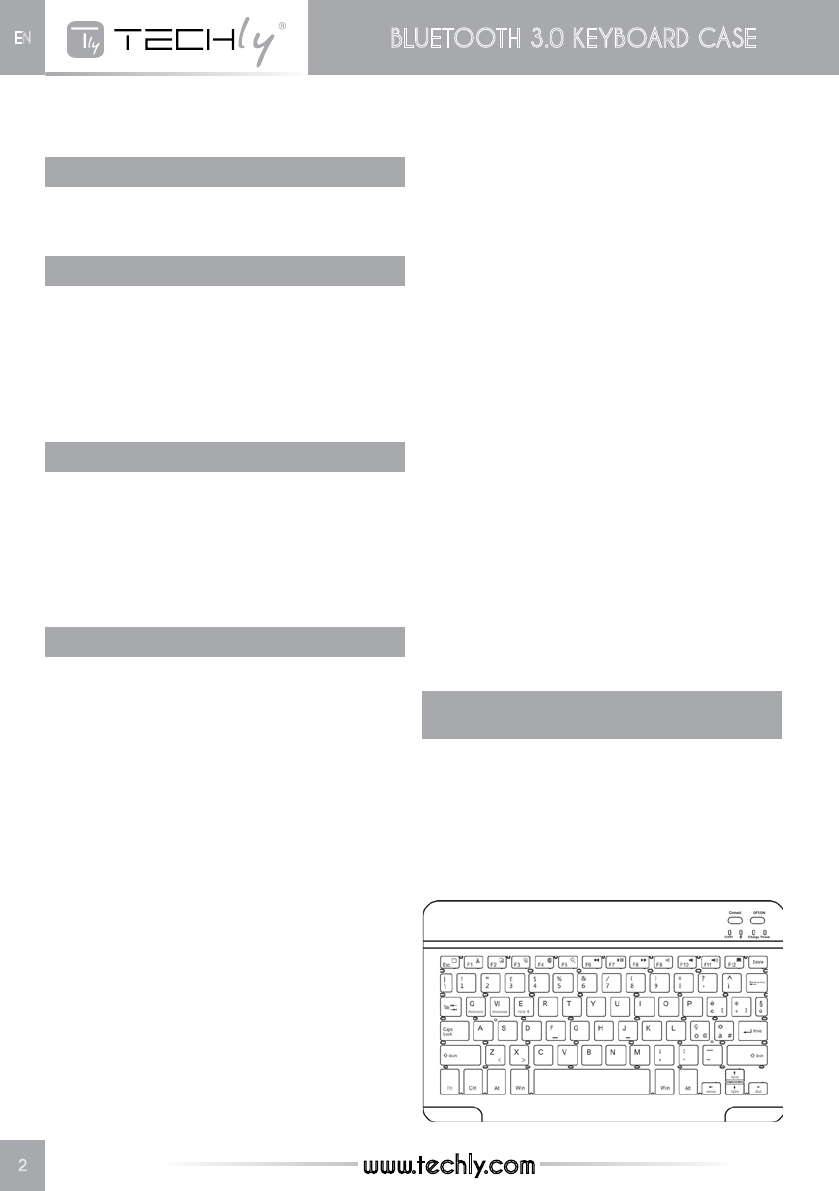
Systems switch between Android, Windows
and iOS
Press the “Fn” + button “Q” for Android;
Press the “Fn” + “W” button for Windows;
Press the “Fn” + “E” button to IOS.
Scarica il manuale in italiano (PDF, 0.54 MB)
(Rispetta l’ambiente e stampa questo manuale solo se è veramente necessario)

Loading…

Valutazione

Facci sapere che cosa pensi della Techly ICTB1001 Tastiera valutando il prodotto. Vuoi condividere la tua esperienze con questo prodotto o porre una domanda? Ti preghiamo di lasciare un commento al fondo della pagina.
Sei soddisfatto di Techly ICTB1001 Tastiera?
No
Valuta per primo questo prodotto
0 voti

Partecipa alla conversazione su questo prodotto

Qui puoi condividere cosa pensi di Techly ICTB1001 Tastiera. Se hai una domanda, leggi prima attentamente il manuale. La richiesta di un manuale può essere effettuata utilizzando il nostro modulo di contatto.

Maggiori informazioni su questo manuale

Comprendiamo che sia bello avere un manuale cartaceo per i tuoi Techly ICTB1001 Tastiera. Puoi sempre scaricare il manuale dal nostro sito web e stamparlo tu stesso. Se desideri avere un manuale originale, ti consigliamo di contattare Techly. Potrebbero essere in grado di fornire un manuale originale. Stai cercando il manuale del tuo Techly ICTB1001 Tastiera in un'altra lingua? Scegli la tua lingua preferita sulla nostra home page e cerca il numero del modello per vedere se è disponibile.

Specifiche

Marca Techly
Modello ICTB1001
Categoria Tastiere
Tipo di file PDF
Dimensione del file 0.54 MB

Tutti i manuali per Techly Tastiere
Altri manuali di Tastiere

Domande frequenti su Techly ICTB1001 Tastiera

Il nostro team di supporto cerca informazioni utili sul prodotto e risposte alle domande più frequenti. Se trovi un’inesattezza nelle nostre domande frequenti, ti preghiamo di farcelo sapere utilizzando il nostro modulo di contatto.

Perché le lettere sulla tastiera non sono al loro solito posto? Verificato

La maggior parte delle tastiere presentano il layout QWERTY, che indica le prime sei lettere sulla tastiera. Tuttavia, esistono diversi layout di tastiera, a seconda delle necessità di alcune lingue. I tasti della tastiera potrebbero anche esser stati invertiti. Nelle vecchie tastiere è particolarmente facile che accada.

È stato utile (1358) Per saperne di più

Qual è il modo migliore per pulire la mia tastiera Verificato

Non inserire mai oggetti tra i bordi dei tasti, in quanto ciò spingerà principalmente lo sporco e danneggerà la tastiera. È meglio pulire la tastiera con aria compressa mantenendo la tastiera capovolta. La parte superiore dei tasti può essere pulita con un panno leggermente umido.

È stato utile (201) Per saperne di più
Manuale Techly ICTB1001 Tastiera

Prodotti correlati

Categorie correlate

×
Download