Manuale Finlux FX40269S27YXH LED televisore

Hai bisogno di un manuale per il tuo Finlux FX40269S27YXH LED televisore? Di seguito è possibile visualizzare e scaricare gratuitamente il manuale in PDF in italiano. Questo prodotto attualmente ha 12 domande frequenti, 0 commenti e ha 0 voti. Se questo non è il manuale che desideri, contattaci.

Il tuo prodotto è difettoso e il manuale non fornisce alcuna soluzione? Rivolgiti a un Repair Café per il servizio di riparazione gratuita.

Manuale

Loading…
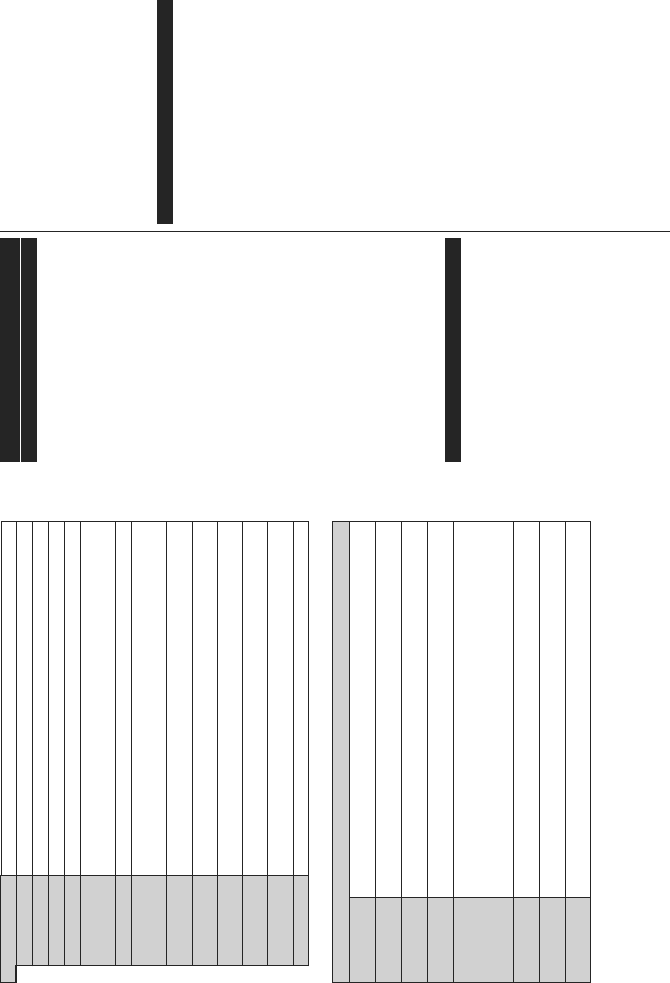
English - 11 -
More Displays other setting options of the TV.
Menu Timeout Changes timeout duration for menu screens.
Standby LED ,IVHWDV2ႇWKHVWDQGE\/('ZLOOQRWOLJKWXSZKHQWKH79LVLQVWDQGE\PRGH
Software Upgrade (QVXUHVWKDW\RXU79KDVWKHODWHVW¿UPZDUH3UHVVOK to see the menu options.
Application Version Displays current software version.
Subtitle Mode
This option is used to select which subtitle mode will be on the screen (DVB subtitle / Teletext
subtitle) if both is available. Default value is DVB subtitle. This feature is available only for the
country option of Norway.
Auto TV OFF Sets the desired time for the TV to automatically go into standby mode when not being operated.
%ඈVV.H\
Biss is a satellite signal scrambling system that is used for some broadcasts. If you need to
enter Biss key on a broadcast, you can use this setting. Highlight Biss Key and press OK to
enter keys on the desired broadcast.
Store Mode
Select this mode for store display purposes. Whilst Store Mode is enabled, some items in the
TV menu may not be available.
Power Up Mode
7KLVVHWWLQJFRQ¿JXUHVWKHSRZHUXSPRGHSUHIHUHQFHLast State and Standby options are
available.
CEC
With this setting you can enable and disable CEC functionality completely. Press Left or Right
button to enable or disable the feature.
CEC Auto Power On
This function allows the connected HDMI-CEC compatible device to turn on the TV and switch
to its input source automatically. Press Left or Right button to enable or disable the feature.
Speakers
To hear the TV audio from the connected compatible audio device set as $PSOL¿HU. You can
use the remote control of the TV to control the volume of the audio device.
OSS Displays Open Source Software license information.
Installation Menu Contents
Automatic channel
scan (Retune)
Displays automatic tuning options. Digital Aerial: Searches and stores aerial DVB stations. Digital
Cable: Searches and stores cable DVB stations. Analogue: Searches and stores analogue stations.
Manual Channel
Scan
This feature can be used for direct broadcast entry.
Network Channel
Scan
Searches for the linked channels in the broadcast system. Digital Aerial: Searches for aerial network
channels. Digital Cable: Searches for cable network channels.
Analogue Fine
Tune
<RXFDQXVHWKLVVHWWLQJIRU¿QHWXQLQJDQDORJXHFKDQQHOV7KLVIHDWXUHLVQRWDYDLODEOHLIQRDQDORJXH
channels are stored.
Installation
Settings (Optional)
Displays installation settings menu. Standby Search(*) : Your TV will search for new or missing
channels while in standby. Any new found broadcasts will be shown. Dynamic Channel Update(*)
: If this option is set as Enabled, the changes on the broadcasts such as frequency, channel name,
subtitle language etc., will be applied automatically while watching.
(*) Availability depends on model.
Clear Service List
Use this setting to clear channels stored. This setting is visible only when the Country option is set
to Denmark, Sweden, Norway or Finland.
Select Active
Network
This setting allows you to select only the broadcasts within the selected network to be listed in the
channel list. This feature is available only for the country option of Norway.
First Time
Installation
Deletes all stored channels and settings, resets TV to factory settings.
English - 12 -
General TV Operation
Using the Channel List
The TV sorts all stored stations in the Channel List.
You can edit this channel list, set favourites or set
active stations to be listed by using the Channel List
options.Press the OK button to open the Channel
List<RXFDQ¿OWHUWKHOLVWHGFKDQQHOVE\SUHVVLQJWKH
Blue button or open the Edit Channel List menu by
pressing the Green button in order to make advanced
changes in the current list.
Managing the Favourite Lists
<RX FDQ FUHDWH IRXU GLႇHUHQWOLVWV RI\RXU IDYRXULWH
channels. Enter the Channel List in the main menu
or press the Green button while the Channel List
is displayed on the screen in order to open the Edit
Channel List menu. Select the desired channel on the
list. You can make multiple choices by pressing the
Yellow button. Then press the OK button to open the
Channel Edit Options menu and select Add/Remove
Favourites option. Press the OK button again. Set the
desired list option to On. The selected channel/s will
be added to the list. In order to remove a channel or
channels from a favourite list follow the same steps
and set the desired list option to 2ႇ.
You can use the Filter function in the Edit Channel
ListPHQX WR ¿OWHUWKH FKDQQHOVLQWKH Channel list
permanently according to your preferences. Using this
Filter option, you can set one of your four favourite lists
to be displayed everytime the Channel list is opened.
7KH¿OWHULQJIXQFWLRQLQWKHChannel list menu will only
¿OWHUWKHFXUUHQWO\GLVSOD\HGChannel list in order to
¿QGDFKDQQHODQGWXQHLQWRLW7KHVHFKDQJHVZLOO
not remain the next time the Channel list is opened if
you don’t save them. To save the changes on the list
press the RedEXWWRQDIWHU¿OWHULQJZKLOHWKHChannel
list is displayed on the screen.
&RQ¿JXULQJ3DUHQWDO6HWWLQJV
The Parental Settings menu options can be used to
prohibit users from viewing of certain programmes,
channels and using of menus. These settings are
located in the System>Settings>Parental menu.
To display parental lock menu options, a PIN number
should be entered. After coding the correct PIN
number, Parental Settings menu will be displayed.
Menu Lock: This setting enables or disables access
to all menus or installation menus of the TV.
Maturity Lock: If this option is set, TV gets the maturity
information from the broadcast and if this maturity level
is disabled, disables access to the broadcast.
Note: If the country option in the First Time Installation is
set as France, Italy or Austria, Maturity Lock’s value will be
set to 18 as default.
Child Lock: If this option is set to ON, the TV can only
be controlled by the remote control. In this case the
control buttons on the TV will not work.
Set PIN'H¿QHVDQHZ3,1QXPEHU
Default CICAM PIN: This option will appear as greyed
out if no CI module is inserted into the CI slot of the
TV. You can change the default PIN of the CI CAM
using this option.
Note: 'HIDXOW3,1FDQQRWEHVHWWR0000,I\RXKDYHGH¿QHG
WKH3,1LVUHTXHVWHGGHSHQGLQJRQWKHFRXQWU\VHOHFWLRQGXULQJ
the First Time InstallationXVHWKH3,1WKDW\RXKDYHGH¿QHG
Some options may not be available depending on the country
selection in the First Time Installation.
Electronic Programme Guide (EPG)
Some channels send information about their broadcast
schedules. Press the Epg button to view the
Programme Guide menu.
There are 3 different types of schedule layouts
available, Timeline Schedule, List Schedule and
Now/Next Schedule. To switch between them follow
the instructions on the bottom of the screen.
Timeline Schedule
Zoom (Yellow button): Press the Yellow button to
see events in a wider time interval.
Filter (Blue button): 9LHZV¿OWHULQJRSWLRQV
Highlight Genre (Subtitles button): Displays
Highlight Genre menu. Using this feature, you can
search the programme guide database in accordance
with the genre. Info available in the programme guide
will be searched and results matching your criteria
will be highlighted.
Options (OK button): Displays event options.
Event Details (Info button): Displays detailed
information about selected events.
Next/Prev Day (Programme +/- buttons): Displays
the events of previous or next day.
Search (Text button): Displays Guide Search menu.
Now (Source button): Displays current event of the
highlighted channel.
List Schedule(*)
(*) In this layout option, only WKH HYHQWV RI WKH KਟJKOਟJKWHG
FKDQQHOZਟOOEHOਟVWHG.
Prev. Time Slice (Red button): Displays the events
of previous time slice.
Next/Prev Day (Programme +/- buttons): Displays
the events of previous or next day.
Event Details (Info button): Displays detailed
information about selected events.
Filter (Text button): 9LHZV¿OWHULQJRSWLRQV
Next Time Slice (Green button): Displays the events
of next time slice.
Options (OK button): Displays event options.
Now/Next Schedule
Options (OK button): Displays event options.
Scarica il manuale in italiano (PDF, 4.18 MB)
(Rispetta l’ambiente e stampa questo manuale solo se è veramente necessario)

Loading…

Valutazione

Facci sapere che cosa pensi della Finlux FX40269S27YXH LED televisore valutando il prodotto. Vuoi condividere la tua esperienze con questo prodotto o porre una domanda? Ti preghiamo di lasciare un commento al fondo della pagina.
Sei soddisfatto di Finlux FX40269S27YXH LED televisore?
No
Valuta per primo questo prodotto
0 voti

Partecipa alla conversazione su questo prodotto

Qui puoi condividere cosa pensi di Finlux FX40269S27YXH LED televisore. Se hai una domanda, leggi prima attentamente il manuale. La richiesta di un manuale può essere effettuata utilizzando il nostro modulo di contatto.

Maggiori informazioni su questo manuale

Comprendiamo che sia bello avere un manuale cartaceo per i tuoi Finlux FX40269S27YXH LED televisore. Puoi sempre scaricare il manuale dal nostro sito web e stamparlo tu stesso. Se desideri avere un manuale originale, ti consigliamo di contattare Finlux. Potrebbero essere in grado di fornire un manuale originale. Stai cercando il manuale del tuo Finlux FX40269S27YXH LED televisore in un'altra lingua? Scegli la tua lingua preferita sulla nostra home page e cerca il numero del modello per vedere se è disponibile.

Specifiche

Marca Finlux
Modello FX40269S27YXH
Categoria LED televisori
Tipo di file PDF
Dimensione del file 4.18 MB

Tutti i manuali per Finlux LED televisori
Altri manuali di LED televisori

Domande frequenti su Finlux FX40269S27YXH LED televisore

Il nostro team di supporto cerca informazioni utili sul prodotto e risposte alle domande più frequenti. Se trovi un’inesattezza nelle nostre domande frequenti, ti preghiamo di farcelo sapere utilizzando il nostro modulo di contatto.

Come si collega un telecomando universale alla televisione? Verificato

Per collegare un telecomando universale, è necessario disporre del numero di modello e marchio sia del telecomando che della televisione. Nel manuale del telecomando è presente un elenco dei marchi e dei numeri di modello.

È stato utile (5080) Per saperne di più

Quale porta devo utilizzare se voglio collegare una cassa al televisore LED tramite HDMI? Verificato

Utilizzare la porta HDMI-ARC, appositamente pensata per collegare i dispositivi audio.

È stato utile (2367) Per saperne di più

Cosa cambia a quale porta HDMI collego il dispositivo? Verificato

In generale si possono collegare dispositivi come blu-ray o console a qualsiasi porta HDMI. Selezionare quindi il canale HDMI corrispondente sulla televisione per utilizzare il dispositivo.

È stato utile (1189) Per saperne di più

Come misuro i pollici del mio televisore LED? Verificato

Per misurare i pollici del televisore LED occorre misurare la diagonale ad es. tra l’angolo superiore sinistro e quello inferiore destro dello schermo (non il bordo). Un pollice equivale a 2,54 cm, quindi se la misura corrisponde a 99 cm, il televisore LED è di 39 pollici.

È stato utile (942) Per saperne di più

Il mio telecomando funzionerà anche su altri modelli di televisori della stessa marca? Verificato

Spesso il telecomando di un televisore funziona anche su modelli simili della stessa marca. Tuttavia, è insolito che funzioni su tutti i modelli di quel marchio. I telecomandi universali sono più adatti a farlo.

È stato utile (667) Per saperne di più

Qual è la differenza tra LCD e LED? Verificato

Entrambe le tecniche utilizzano uno schermo LCD che non emette luce da solo. La differenza sta nell’illuminazione dietro lo schermo. Negli schermi LCD l’illuminazione avviene grazie al CCFL (lampada a fluorescenza a catodo freddo), mentre i LED utilizzano lampade LED.

È stato utile (531) Per saperne di più

Cosa significa HDMI? Verificato

HDMI è l'acronimo di High-Definition Multimedia Interface. HDMI è una connessione per inviare video e audio di alta qualità da un dispositivo a un altro.

È stato utile (456) Per saperne di più

Si possono riparare da soli i pixel bruciati? Verificato

I pixel bruciati sono diversi dai pixel bloccati. Un pixel bloccato è ancora colorato e può essere sistemato applicando una leggera pressione esattamente sul pixel fino a quando non si ripristina. Un pixel bruciato è sempre bianco o nero e non può essere riparato autonomamente.

È stato utile (424) Per saperne di più

Cos’è il rapporto di contrasto? Verificato

Il rapporto di contrasto indica la distanza tra il bianco più bianco e il nero più nero. Ad esempio un rapporto di contrasto di 400:1 indica che il nero più nero sullo schermo è 400 volte più scuro del bianco più bianco. Un alto rapporto di contrasto aumenta la nitidezza dell’immagine.

È stato utile (402) Per saperne di più

Qual è il modo migliore per pulire un televisore LED? Verificato

Spegnere il televisore ed eliminare lo sporco e la polvere dallo schermo con un panno in microfibra. Non utilizzare della carta che potrebbe rigare lo schermo. Non applicare troppa pressione che potrebbe danneggiare i pixel. Utilizzare un detergente apposito o pulire con una soluzione composta da una parte di aceto e una parte di acqua. Bagnare il panno con la soluzione detergente e pulire lo schermo. Assicurarsi che il panno non sia troppo bagnato. Rimuovere le macchie effettuando dei movimenti circolari. Asciugare lo schermo con un altro panno in microfibra per evitare aloni.

È stato utile (353) Per saperne di più

Qual è la distanza ottimale per guardare la televisione? Verificato

In parte dipende dalle preferenze personali, ma in generale la distanza ottimale di visione è circa 3 volte la dimensione diagonale del televisore. Per un televisore da 60 pollici (152 cm) la distanza di visione ottimale sarebbe di 180 pollici, ovvero 4,5 metri.

È stato utile (353) Per saperne di più

Perché ci sono lettere accanto ai numeri sul telecomando? Verificato

Alcune impostazioni del televisore potrebbero richiedere l'immissione di lettere. Di solito ci sono tre lettere o altri caratteri su un pulsante. Quando è richiesto l'inserimento di lettere, è possibile premere quel pulsante una volta per la prima lettera, premere due volte per la seconda lettera e premere 3 volte per la terza lettera. In questo modo, il testo può essere scritto con un numero minimo di pulsanti.

È stato utile (353) Per saperne di più


Manuale Finlux FX40269S27YXH LED televisore

Prodotti correlati

Categorie correlate

×
Download