Manuale Finlux FX40269S27YXH LED televisore

Hai bisogno di un manuale per il tuo Finlux FX40269S27YXH LED televisore? Di seguito è possibile visualizzare e scaricare gratuitamente il manuale in PDF in italiano. Questo prodotto attualmente ha 12 domande frequenti, 0 commenti e ha 0 voti. Se questo non è il manuale che desideri, contattaci.

Il tuo prodotto è difettoso e il manuale non fornisce alcuna soluzione? Rivolgiti a un Repair Café per il servizio di riparazione gratuita.

Manuale

Loading…
English - 7 -
6ZLWFKLQJ2Q2ႇ
To Switch the TV On
Connect the power cord to a power source such as a
wall socket (220-240V AC, 50 Hz).
To switch on the TV from standby mode either:
 Press the Standby button, Programme +/- or a
numeric button on the remote control.
 Press the side function switch on the TV until the TV
comes on from standby.
7R6ZLWFKWKH792ႇ
Press the Standby button on the remote control or
press the side function switch on the TV until the TV
switches into standby mode.
To power down the TV completely, unplug the
power cord from the mains socket.
Note: When the TV is switched into standby mode, the standby
LED can blink to indicate that features such as Standby
Search, Over Air Download or Timer is active. The LED can
also blink when you switch on the TV from standby mode.
First Time Installation
When turned on for the first time, the language
selection screen is displayed. Select the desired
language and press OK.
On the next screen, set your preferences using the
directional buttons.
Note: Depending on the Country selection you may be asked
WRVHWDQGFRQ¿UPD3,1DWWKLVSRLQW7KHVHOHFWHG3,1FDQQRW
EH<RXKDYHWRHQWHULWLI\RXDUHDVNHGWRHQWHUD3,1
for any menu operation later.
About Selecting Broadcast Type
Digital Aerial: If Digital Aerial broadcast search
option is turned on, the TV will search for digital
terrestrial broadcasts after other initial settings are
completed.
Digital Cable: If Digital Cable broadcast search
option is turned on, the TV will search for digital cable
broadcasts after other initial settings are completed.
$FFRUGLQJ WR \RXU RWKHU SUHIHUHQFHVD FRQ¿UPDWLRQ
message may be displayed before starting to search.
Select YES and press OK to proceed. To cancel
operation, select NO and press OK. You can select
Network or set values such as Frequency, Network
ID and Search Step.:KHQ¿QLVKHGSUHVVOK button.
Note: Searching duration will change depending on the
selected Search Step.
Satellite: If the research option Satellite is switch-on,
TV will search for digital satellite channels after other
initial settings are completed.
Before performing the satellite search, some settings
should be made:
If the type of installation is standard, you can select
Antenna’s Type on Direct, Single Satellite Cable or
DiSEqC Switch using the button “
” or “ ” .
Direct: If you have a single receiver and a direct
parabola, select this type of antenna. Press OK
button to continue. Select a satellite available on the
next screen and press OK for the scan of the services.
Single Satellite Cable: If you have multiple receivers
and a single satellite cable, select this type of antenna.
Press OKEXWWRQWRFRQWLQXH&RQ¿JXUHWKHVHWWLQJV
by following the instructions on the next screen. Press
OK to scan the devices.
DiSEqC switch: In case you have a multiple LNB or
multiple satellite dish and a DiSEqC switch, select this
type of antenna. Press OK button to continue. It will
be possible to set four DiSEqC options (if available)
on the next screen. Press OKEXWWRQWRVFDQWKH¿UVW
satellite in the list.
If the installation type is Operator - Tivusat will be
made a research for the channels on the Hot Bird 13
East satellite according to Tivusat order.
It will be possible select Antenna’s Type on Direct ,
Single Satellite Cable or DiSEqC Switch by using
the “
” or “ ” buttons.
Direct: If you have a single receiver and a direct
parabola, select this type of antenna. Press OK button
to continue. On the next screen will appear the Hot
Bird (13.0E) satellite imposted, press OK for the scan
of the services.
Single Satellite Cable: If you have multiple receivers
and a single satellite cable, select this type of antenna.
Press OKEXWWRQWRFRQWLQXH&RQ¿JXUHWKHVHWWLQJV
by following the instructions on the next screen. Press
OK to scan the devices.
DiSEqC switch: In case you have a multiple LNB or
multiple satellite dish and a DiSEqC switch, select this
type of antenna. Press OK button to continue. It will
be possible to set four DiSEqC options (if availables)
on the next screen. Press OKEXWWRQWRVFDQWKH¿UVW
satellite in the list.
Analogue: If Analogue broadcast search option is
turned on, the TV will search for analogue broadcasts
after other initial settings are completed.
Additionally you can set a broadcast type as your
favourite one. Priority will be given to the selected
broadcast type during the search process and the
channels of it will be listed on the top of the Channel
List:KHQ¿QLVKHGSUHVVOK to continue.
You can activate Store Mode option at this point.
7KLVRSWLRQZLOOFRQ¿JXUH\RXU79¶VVHWWLQJVIRUVWRUH
environment and depending on the TV model being
used, the supported features of it may be displayed
on the top of the screen as an info banner. This option
is intended only for store use. It is recommended to
English - 8 -
select Home Mode for home use. This option will be
available in System>Settings>More menu and can
EHWXUQHGRႇRQODWHU
Press OK button on the remote control to continue.
After the initial settings are completed TV will start
to search for available broadcasts of the selected
broadcast types.
After all the available stations are stored, scan results
will be displayed. Press OK to continue. The Edit
Channel List menu will be displayed next. You can
edit the channel list according to your preferences or
press the Menu button to quit and watch TV.
While the search continues a message may appear,
asking whether you want to sort channels according
to the LCN(*). Select Yes and press OK WRFRQ¿UP.
(*) /&1LVWKH/RJLFDO&KDQQHO1XPEHUV\VWHPWKDWRUJDQL]HV
DYDLODEOH EURDGFDVWV LQ DFFRUGDQFH ZLWK D UHFRJQL]DEOH
channel number sequence (if available).
Note:'R QRW WXUQ RII WKH 79 ZKLOH LQLWLDOL]LQJ ILUVW WLPH
LQVWDOODWLRQ 1RWH WKDW VRPH RSWLRQV PD\ QRW EH DYDLODEOH
depending on the country selection.
Media Playback via USB Input
You can connect 2.5” and 3.5” inch (hdd with external power
supply) external hard disk drives or USB memory stick to your
TV by using the USB inputs of the TV.
IMPORTANT!%DFNXSWKH¿OHVRQ\RXUVWRUDJHGHYLFHV
before connecting them to the TV. Manufacturer will
QRWEHUHVSRQVLEOHIRUDQ\¿OHGDPDJHRUGDWDORVV
Certain types of USB devices (e.g. MP3 Players)
or USB hard disk drives/memory sticks may not be
compatible with this TV. The TV supports FAT32 and
NTFS disk formatting.
Wait a little while before each plugging and unplugging
DVWKHSOD\HUPD\VWLOOEHUHDGLQJ¿OHV)DLOXUHWRGR
so may cause physical damage to the USB player
and the USB device itself. Do not pull out your drive
ZKLOHSOD\LQJD¿OH
You can use USB hubs with your TV’s USB inputs.
External power supplied USB hubs are recommended
in such a case.
It is recommended to use the TV’s USB input(s)
directly, if you are going to connect a USB hard disk.
Note::KHQ YLHZLQJLPDJH¿OHV WKHMedia Browser menu
FDQRQO\ GLVSOD\ LPDJH ¿OHV VWRUHG RQ WKHFRQQHFWHG
USB device.
Media Browser Menu
<RXFDQSOD\SKRWRPXVLFDQGPRYLH¿OHVVWRUHGRQD
USB disk by connecting it to your TV. Connect a USB
disk to one of the USB inputs located on the side of
the TV. Pressing the Menu button while in the Media
Browser mode will access the Picture, Sound and
Settings menu options. Pressing the Menu button
again will exit from this screen.
You can set your Media
Browser preferences by using the Settings Menu.
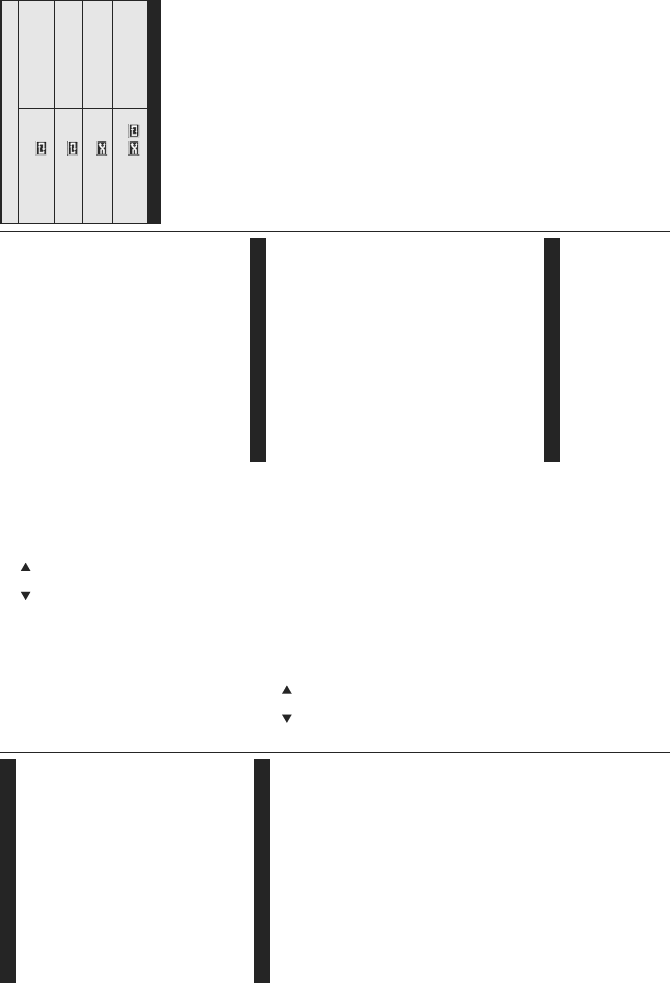
/RRS6KX௼H0RGH2SHUDWLRQ
Start playback with the Play
button and activate
$OO¿OHVLQWKHOLVWZLOOEH
continuously played in original
order
Start playback with the OK
button and activate
7KHVDPH¿OHZLOOEHSOD\HG
continuously (repeat)
Start playback with the Play
button and activate
$OO¿OHVLQWKHOLVWZLOOEH
played once in random order
Start playback with the Play
button and activate
,
$OO¿OHVLQWKHOLVWZLOOEH
continuously played in the
same random order.
CEC and CEC RC Passthrough
This function allows to control the CEC-enabled devices,
that are connected through HDMI ports by using the
remote control of the TV.
The CEC option in the System>Settings>More menu
should be set as EnabledDW ¿UVW3UHVV WKH Source
button and select the HDMI input of the connected CEC
device from the Sources List menu. When new CEC
source device is connected, it will be listed in source menu
with its own name instead of the connected HDMI ports
name(such as DVD Player, Recorder 1 etc.).
The TV remote is automatically able to perform the
main functions after the connected HDMI source has
been selected.
To terminate this operation and control the TV via the remote
again, press Quick Menu button on the remote, highlight the
CEC RC Passthrough and set as 2ႇ by pressing Left or
Right button. This feature can also be enabled or disabled
under the System>Settings>More menu.
The TV supports also ARC(Audio Return Channel)
feature. This feature is an audio link meant to replace
other cables between the TV and the audio system (A/V
receiver or speaker system).
When ARC is active, TV does not mute its other audio
outputs automatically. So you need to decrease TV
volume to zero manually, if you want to hear audio from
connected audio device only (same as other optical or
co-axial digital audio outputs). If you want to change
connected device’s volume level, you should select that
device from the source list. In that case volume control
keys are directed to connected audio device.
Note: ARC is supported only via the HDMI1 input.
System Audio Control
$OORZVDQ$XGLR$PSOL¿HU5HFHLYHUWREHXVHGZLWKWKH
TV. The volume can be controlled using the remote
control of the TV. To activate this feature set the
Speakers option in the System>Settings>More menu
as $PSOL¿HU. The TV speakers will be muted and the
sound of the watched source will be provided from the
connected sound system.
Note: The audio device should support System Audio Control
feature and CEC option should be set as Enabled.
Scarica il manuale in italiano (PDF, 4.18 MB)
(Rispetta l’ambiente e stampa questo manuale solo se è veramente necessario)

Loading…

Valutazione

Facci sapere che cosa pensi della Finlux FX40269S27YXH LED televisore valutando il prodotto. Vuoi condividere la tua esperienze con questo prodotto o porre una domanda? Ti preghiamo di lasciare un commento al fondo della pagina.
Sei soddisfatto di Finlux FX40269S27YXH LED televisore?
No
Valuta per primo questo prodotto
0 voti

Partecipa alla conversazione su questo prodotto

Qui puoi condividere cosa pensi di Finlux FX40269S27YXH LED televisore. Se hai una domanda, leggi prima attentamente il manuale. La richiesta di un manuale può essere effettuata utilizzando il nostro modulo di contatto.

Maggiori informazioni su questo manuale

Comprendiamo che sia bello avere un manuale cartaceo per i tuoi Finlux FX40269S27YXH LED televisore. Puoi sempre scaricare il manuale dal nostro sito web e stamparlo tu stesso. Se desideri avere un manuale originale, ti consigliamo di contattare Finlux. Potrebbero essere in grado di fornire un manuale originale. Stai cercando il manuale del tuo Finlux FX40269S27YXH LED televisore in un'altra lingua? Scegli la tua lingua preferita sulla nostra home page e cerca il numero del modello per vedere se è disponibile.

Specifiche

Marca Finlux
Modello FX40269S27YXH
Categoria LED televisori
Tipo di file PDF
Dimensione del file 4.18 MB

Tutti i manuali per Finlux LED televisori
Altri manuali di LED televisori

Domande frequenti su Finlux FX40269S27YXH LED televisore

Il nostro team di supporto cerca informazioni utili sul prodotto e risposte alle domande più frequenti. Se trovi un’inesattezza nelle nostre domande frequenti, ti preghiamo di farcelo sapere utilizzando il nostro modulo di contatto.

Come si collega un telecomando universale alla televisione? Verificato

Per collegare un telecomando universale, è necessario disporre del numero di modello e marchio sia del telecomando che della televisione. Nel manuale del telecomando è presente un elenco dei marchi e dei numeri di modello.

È stato utile (5079) Per saperne di più

Quale porta devo utilizzare se voglio collegare una cassa al televisore LED tramite HDMI? Verificato

Utilizzare la porta HDMI-ARC, appositamente pensata per collegare i dispositivi audio.

È stato utile (2367) Per saperne di più

Cosa cambia a quale porta HDMI collego il dispositivo? Verificato

In generale si possono collegare dispositivi come blu-ray o console a qualsiasi porta HDMI. Selezionare quindi il canale HDMI corrispondente sulla televisione per utilizzare il dispositivo.

È stato utile (1189) Per saperne di più

Come misuro i pollici del mio televisore LED? Verificato

Per misurare i pollici del televisore LED occorre misurare la diagonale ad es. tra l’angolo superiore sinistro e quello inferiore destro dello schermo (non il bordo). Un pollice equivale a 2,54 cm, quindi se la misura corrisponde a 99 cm, il televisore LED è di 39 pollici.

È stato utile (942) Per saperne di più

Il mio telecomando funzionerà anche su altri modelli di televisori della stessa marca? Verificato

Spesso il telecomando di un televisore funziona anche su modelli simili della stessa marca. Tuttavia, è insolito che funzioni su tutti i modelli di quel marchio. I telecomandi universali sono più adatti a farlo.

È stato utile (667) Per saperne di più

Qual è la differenza tra LCD e LED? Verificato

Entrambe le tecniche utilizzano uno schermo LCD che non emette luce da solo. La differenza sta nell’illuminazione dietro lo schermo. Negli schermi LCD l’illuminazione avviene grazie al CCFL (lampada a fluorescenza a catodo freddo), mentre i LED utilizzano lampade LED.

È stato utile (531) Per saperne di più

Cosa significa HDMI? Verificato

HDMI è l'acronimo di High-Definition Multimedia Interface. HDMI è una connessione per inviare video e audio di alta qualità da un dispositivo a un altro.

È stato utile (456) Per saperne di più

Si possono riparare da soli i pixel bruciati? Verificato

I pixel bruciati sono diversi dai pixel bloccati. Un pixel bloccato è ancora colorato e può essere sistemato applicando una leggera pressione esattamente sul pixel fino a quando non si ripristina. Un pixel bruciato è sempre bianco o nero e non può essere riparato autonomamente.

È stato utile (424) Per saperne di più

Cos’è il rapporto di contrasto? Verificato

Il rapporto di contrasto indica la distanza tra il bianco più bianco e il nero più nero. Ad esempio un rapporto di contrasto di 400:1 indica che il nero più nero sullo schermo è 400 volte più scuro del bianco più bianco. Un alto rapporto di contrasto aumenta la nitidezza dell’immagine.

È stato utile (402) Per saperne di più

Qual è il modo migliore per pulire un televisore LED? Verificato

Spegnere il televisore ed eliminare lo sporco e la polvere dallo schermo con un panno in microfibra. Non utilizzare della carta che potrebbe rigare lo schermo. Non applicare troppa pressione che potrebbe danneggiare i pixel. Utilizzare un detergente apposito o pulire con una soluzione composta da una parte di aceto e una parte di acqua. Bagnare il panno con la soluzione detergente e pulire lo schermo. Assicurarsi che il panno non sia troppo bagnato. Rimuovere le macchie effettuando dei movimenti circolari. Asciugare lo schermo con un altro panno in microfibra per evitare aloni.

È stato utile (353) Per saperne di più

Qual è la distanza ottimale per guardare la televisione? Verificato

In parte dipende dalle preferenze personali, ma in generale la distanza ottimale di visione è circa 3 volte la dimensione diagonale del televisore. Per un televisore da 60 pollici (152 cm) la distanza di visione ottimale sarebbe di 180 pollici, ovvero 4,5 metri.

È stato utile (353) Per saperne di più

Perché ci sono lettere accanto ai numeri sul telecomando? Verificato

Alcune impostazioni del televisore potrebbero richiedere l'immissione di lettere. Di solito ci sono tre lettere o altri caratteri su un pulsante. Quando è richiesto l'inserimento di lettere, è possibile premere quel pulsante una volta per la prima lettera, premere due volte per la seconda lettera e premere 3 volte per la terza lettera. In questo modo, il testo può essere scritto con un numero minimo di pulsanti.

È stato utile (353) Per saperne di più


Manuale Finlux FX40269S27YXH LED televisore

Prodotti correlati

Categorie correlate

×
Download